Turn the screen off and most Android video players stop. That is fine for a film and useless for everything you only wanted to hear: a recorded lecture, an interview, a talk, a long voice message someone sent as a video. If the file is on your phone, Kite: Video Downloader gives you a one-tap answer called Play as audio, plus two other routes for when a different shape of playback suits better. Kite is our app, so read this as our honest description of what it does rather than a neutral review. Everything here concerns files stored on your phone; streaming apps set their own rules and are not the subject of this guide.
Why the sound stops when the screen does
Android treats a video player as something you are looking at. When the display sleeps, the system pauses the app along with everything else on screen, and the sound goes with the picture. Playback continues only if the app runs a proper background media session, the same machinery a music app uses, with a notification and lock-screen controls. Video players, on the whole, do not. Some phones go further and shut down background apps aggressively to save battery, which is why even a music app sometimes falls silent a minute after the screen goes dark.
So the fix is never a setting buried in the video player you already have. It is an app built to hand the sound over to a background session on purpose. Kite does exactly that, in three ways.
Route 1: Play as audio, one tap on the video you are watching
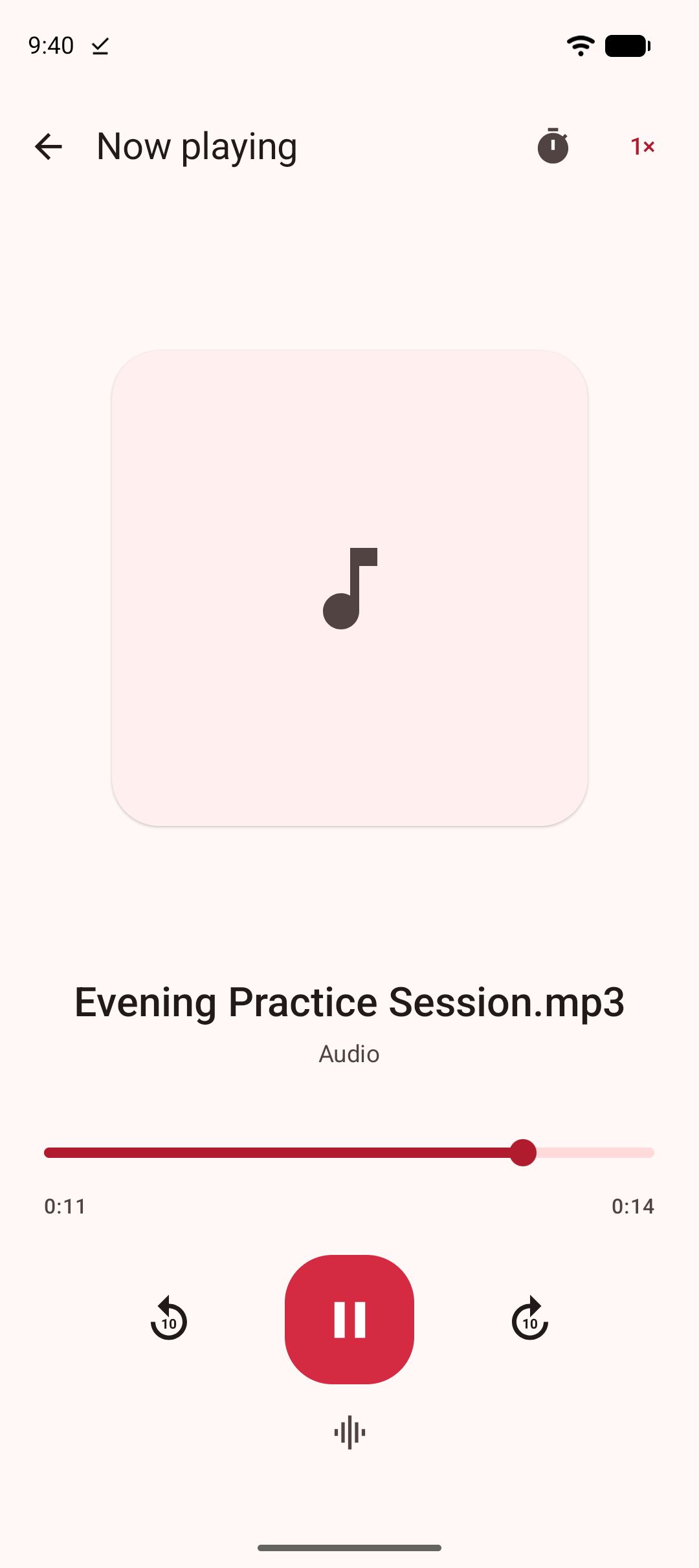
Open a saved video in Kite’s player and tap Play as audio. Kite stops drawing the picture and moves the sound into its background audio service, the same one that plays MP3s, so it keeps going when the screen turns off, when you switch to another app, and when you lock the phone. Controls appear on the lock screen, in the notification shade and on Bluetooth headphones or a car stereo. The notification gives you play and pause plus ten-second skips either way; skip back is there for the sentence you missed.
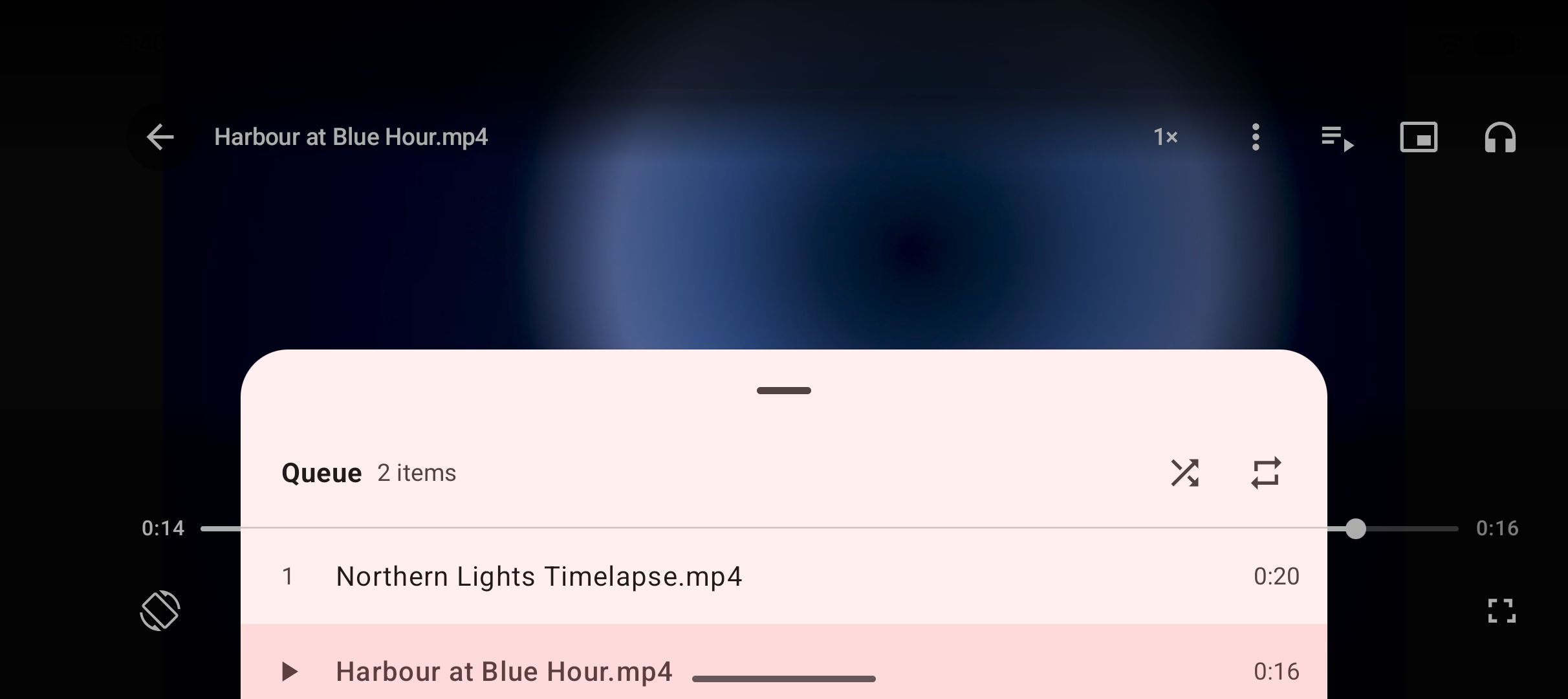
Two details are deliberate. First, it is one tap, never automatic: a video you open normally stays a video and pauses with the screen, because a media notification for a video you cannot see is noise. Second, it is one video at a time. The queue of saved videos behind the one you are watching does not follow into audio mode, so the next video never starts playing unseen. When you tap Play as audio, the phone also stops decoding pictures nobody can see, since there is no surface to draw them on, and only the sound is processed.
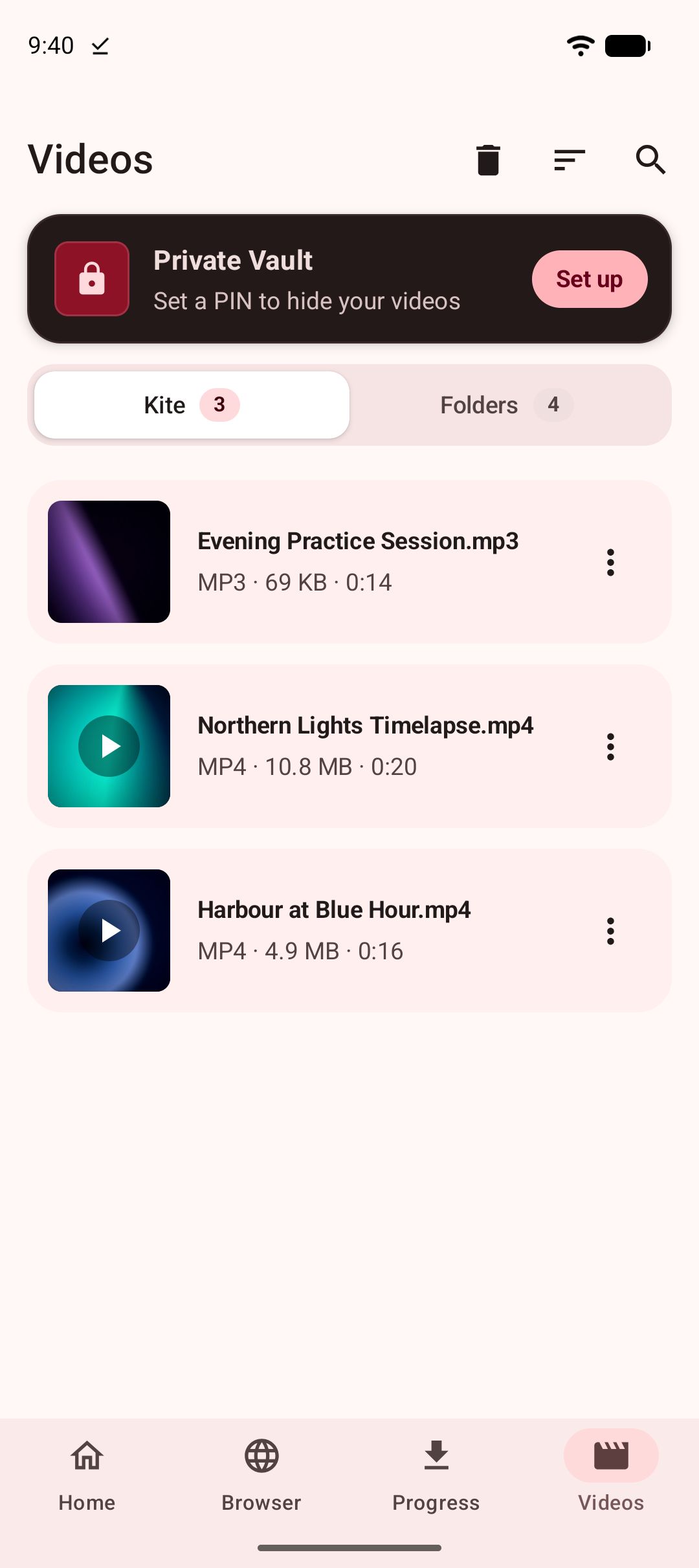
This works on more than Kite’s own downloads. The Videos tab lists every folder on the phone that holds video or music, so a camera recording, a screen capture or a file copied over from a computer can be played as audio the same way.
While it plays, a slim bar above Kite’s tabs shows what is playing, with play, pause and close, so you can get back to it from anywhere in the app. The equaliser applies here too: bass boost, surround and the presets shape a video played as audio just as they shape an MP3, and our guide to boosting bass on Android explains how to set them and why they work best with headphones.
Route 2: convert it to an MP3 first
If a video is something you will only ever listen to, make it an MP3. Open the file’s menu in Kite’s library and choose Convert to MP3. The conversion runs on the phone, with no upload, no size limit and no second app, and the result lands in a Kite folder your music and file apps can see, next to the original, which stays where it was.
An MP3 in Kite behaves like music. It keeps playing with the screen off, with lock-screen, shade and Bluetooth controls; it queues up with the other audio saved alongside; repeat and shuffle are there; and the file is far smaller than the video it came from. Our guide to converting a video to MP3 on Android covers both this path and pulling the audio straight out of a link at download time. If you are comparing converter apps, we lined the field up in our roundup of video to MP3 apps for Android.
Route 3: picture-in-picture, when you still want to see it
Sometimes the problem is not the screen turning off but needing it for something else. Kite’s player pops a video out into picture-in-picture: a small floating window that keeps playing while you reply to a message, check a map or read something. It is standard Android behaviour, so you can move the window around and expand it again when you are done. It is not a screen-off feature; the display stays on, and the video stays a video.
Step by step: listening with the screen off
- Install Kite: Video Downloader from Google Play. It runs on Android 7.0 and newer, needs no account or sign-up, and is free and supported by ads, a banner and the occasional interstitial.
- Open the video. Either from Kite’s library of downloads, or from the Videos tab, which lists the video and music already on the phone, grouped by folder and searchable.
- Tap Play as audio. The picture goes away, the sound carries on, and the controls appear in the notification shade.
- Turn the screen off. Playback continues. Use the lock-screen controls, your headphones’ buttons or the notification to pause and skip.
- Set the sleep timer if you want it to stop on its own. Useful for anything you fall asleep to.
- Allow notifications if Android asks. On Android 13 and newer the system asks once for permission to show notifications; that is what puts the controls on your lock screen. Nothing else is asked for, and there is no account.
If the sound still stops
You turned the screen off without tapping Play as audio. The video pauses on purpose. Reopen it and tap Play as audio, or convert it to MP3.
Your phone’s battery saver is closing background apps. Some phones restrict apps in the background more aggressively than standard Android does. If audio stops a minute or two after the screen goes dark, find Kite in your phone’s battery or app settings and allow it to run in the background. The playback notification is what tells Android the app is doing something you asked for.
Headphones unplugged, or Bluetooth dropped. Kite pauses when the audio route disappears, so a lecture does not blare from the loudspeaker on a train. Reconnect and press play.
A call came in. Android hands the sound to the phone app for the call and gives it back afterwards; Kite pauses for the call and waits.
What this is not
Play as audio works on files on your phone: videos you saved with Kite, or that were already there. Two limits carry over from the rest of the app. Kite does not bypass copy protection of any kind: material protected by DRM is declined rather than downloaded. And there are certain large video and music platforms that Google Play policy does not allow downloader apps to touch; Kite deliberately excludes them, so what you cannot save with Kite you cannot listen to with Kite either.
For the watching side, with gestures, a queue and a player that remembers where you stopped, see what makes a good offline video player on Android. For getting the files in the first place, our complete guide to downloading videos on Android starts from the beginning.