To boost bass on Android, use an equaliser in the app you listen with. Start from a bass preset, lift the two lowest bands by a few decibels, and add bass boost a little at a time, ideally with headphones on. If bass boost seems to do nothing at all, you are probably listening through the phone’s own speaker, and on many phones that is deliberate. This guide explains why, then shows the equaliser in Kite: Video Downloader, which shapes the sound of the audio you keep on your phone. Kite is our app, so read this as our description of what it does rather than a neutral review.
What an equaliser actually changes
An equaliser splits sound into bands, each centred on one frequency, and lets you raise or lower each band in decibels (dB). Android’s standard audio-effects engine offers five bands, centred on 60 Hz, 230 Hz, 910 Hz, 3.6 kHz and 14 kHz. Roughly, from the bottom up:
- 60 Hz is the thump: kick drums, the lowest notes of a bass line, the rumble of an engine.
- 230 Hz is the body of low notes and the warmth of a voice. Too much of it and everything sounds muddy.
- 910 Hz is the middle, where voices and most instruments do their work.
- 3.6 kHz is presence: the edge that makes speech clear and a guitar bite.
- 14 kHz is air: cymbals, breath, the sparkle at the top.
“More bass” means the first two bands. Small moves matter. A few decibels is a clearly audible change, and what you hear is the difference between the bands rather than how high they all sit. Phones whose maker ships its own sound engine may report more bands or different centres, and a well-made equaliser simply follows whatever the phone reports.
Why bass boost can seem to do nothing
Two behaviours of Android’s standard effects engine, both written into its source code in the Android Open Source Project, explain most of the complaints on forums.
It switches bass boost off on speakers. When sound is going to the phone’s built-in speaker, a Bluetooth speaker or a car kit, the engine turns bass boost off, and it turns it back on when you connect headphones. The surround effect, which widens the sound, runs only on wired headphones and on Bluetooth, USB or LE Audio headphones and headsets. Through all of this the effect keeps reporting that it is on, so a slider moves and nothing happens. That is not the app failing: the engine has decided a small speaker should not be asked for it.
It turns everything down as boosts add up. To stop loud passages from distorting, the engine keeps the overall level below full scale while preserving the balance between the equaliser bands and bass boost. Raise every band and the engine lowers the whole signal to compensate, so you gain nothing except, often, a quieter track. What survives is the shape. That is why lowering the middle and the top can give you the same bass-heavy balance as raising the bottom, without the drop in level.
Phone makers often replace this engine with sound processing of their own, which may behave differently, and we have not tested every brand. And no setting can make a speaker the size of a fingernail move the air that deep bass needs. Headphones remain the honest answer.
Three places an equaliser can live
In your phone’s sound settings
Some phone makers add an equaliser or a sound-enhancement menu to the sound settings. Whether you have one, and what it covers, depends on the maker and the model; your phone maker’s help pages are the place to check.
In a system-wide equaliser app
These apps try to shape the sound of every app at once. How well that works varies with the phone and with each player, and there is a catch: when two equalisers try to control the same audio, only one of them can be in charge, so a system-wide app and a player’s own equaliser can undo each other.
Inside the player you listen with
An equaliser built into a player shapes only that player’s sound. It is the most predictable of the three: it knows exactly which audio it is working on, and its settings stay with the player. Kite’s is this kind.
The equaliser in Kite: Video Downloader
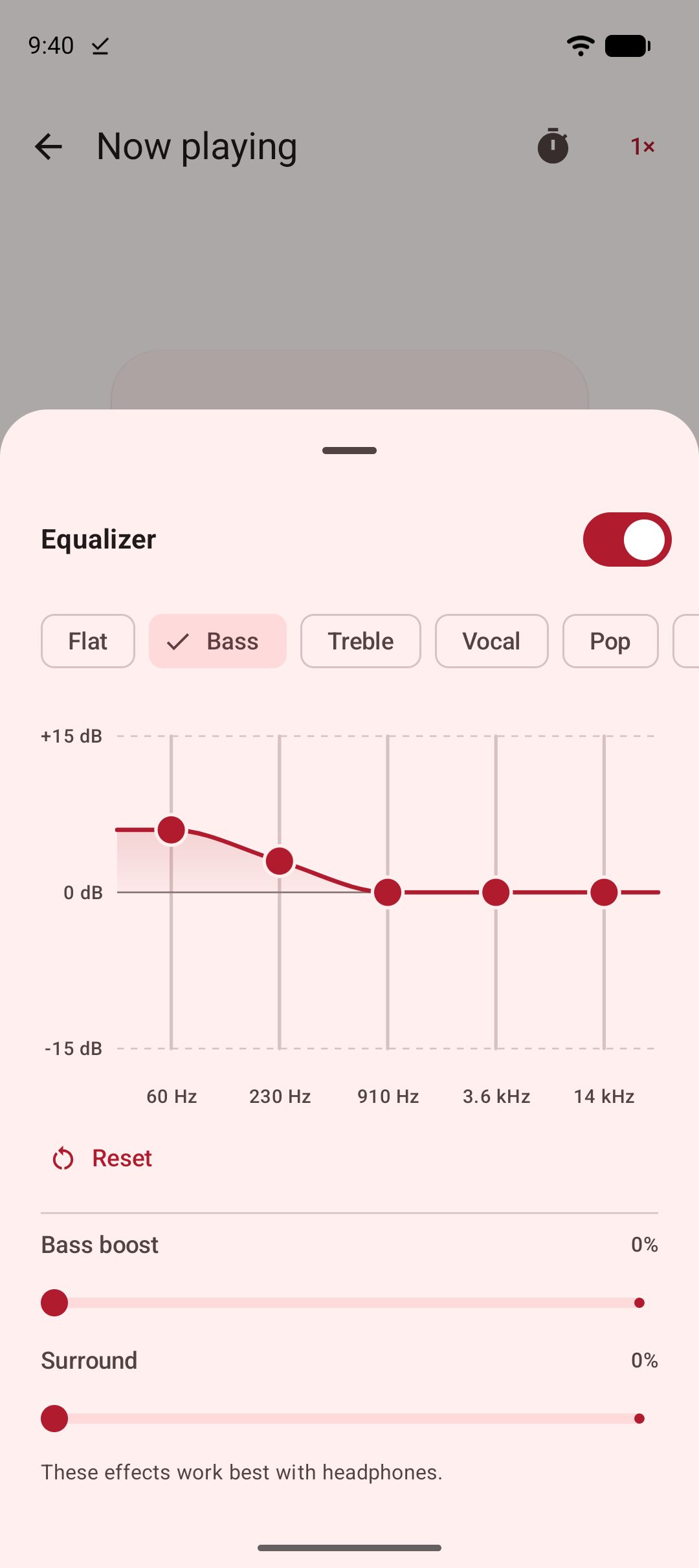
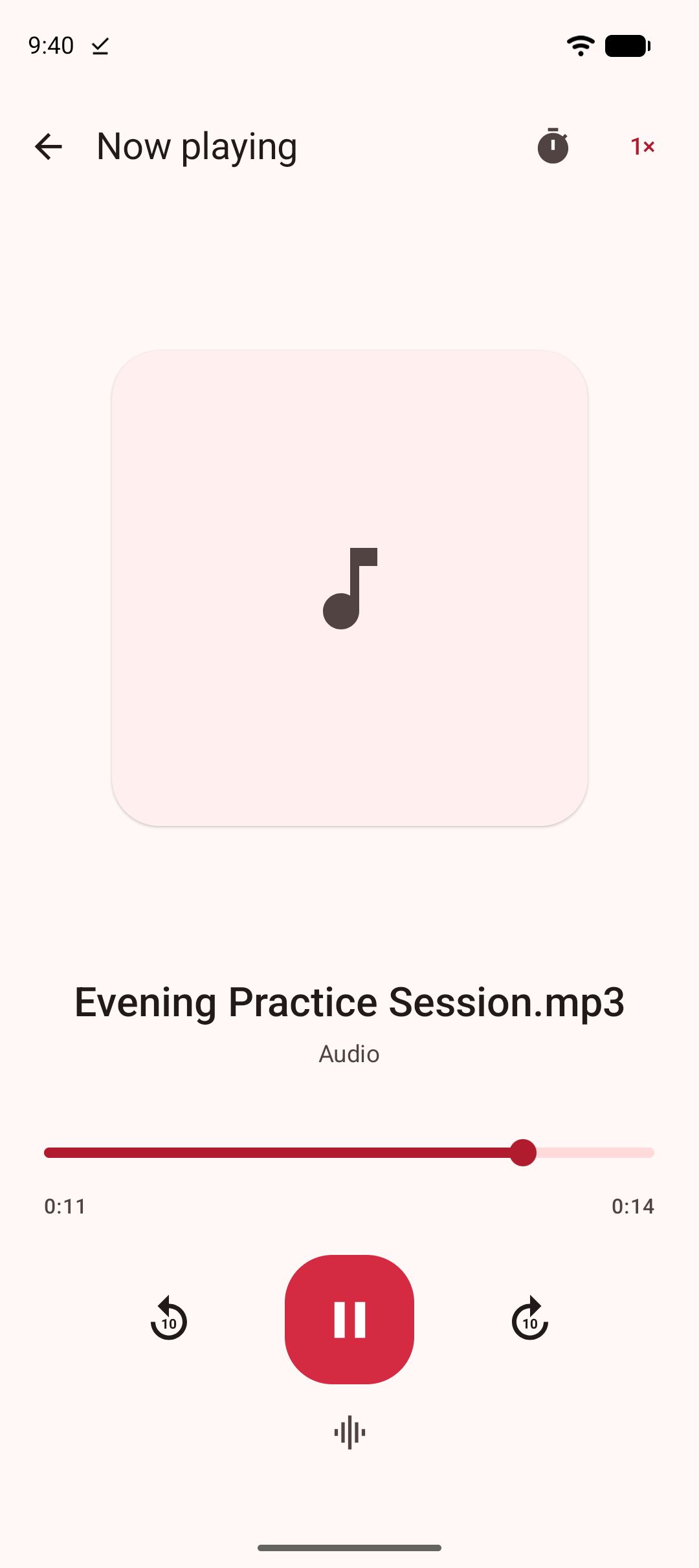
Kite is a video downloader and player on Google Play for Android 7.0 and newer. It is free, supported by ads (a banner and the occasional interstitial), and needs no account. Its equaliser lives in the audio player, the Now playing screen, as the Equalizer button beneath the play button. It works on whatever plays there: an MP3 you saved or converted, or a video you have switched to Play as audio.
The sheet holds:
- An on/off switch, so you can compare the shaped sound with the original.
- Twelve presets: Flat, Bass, Treble, Vocal, Pop, Rock, Hip-hop, Dance, Electronic, Jazz, Classical and Acoustic. They are Kite’s own curves rather than whatever preset names a phone ships with, so they mean the same thing on every device, and none raises a band by more than 6 dB, for the level reason above. Classical, Dance, Hip-hop and Jazz take their values from the preset table of Android’s standard engine.
- A band graph. Drag a band and the curve redraws through it, and the sound changes while your finger is still moving. Double-tap a band to send it back to 0 dB. Moving any band switches the selection to Custom.
- Reset, which returns everything to flat, bass boost and surround included.
- Save preset, which keeps the current curve under a name of up to 24 characters. Saving under a name you have already used replaces that preset, and a saved preset can be deleted again without changing what you hear.
- Bass boost and Surround sliders, shown only when the phone’s engine offers them with an adjustable strength, above the note “These effects work best with headphones.” Picking a preset leaves both where you set them.
The equaliser is attached to Kite’s own playback only, so it never changes the sound of other apps, and it needs no special permission. It carries on with the screen off and in the background, because the audio player does. It does not apply to a video you are watching with the picture: Kite’s video player has no sound effects by design, and Play as audio is the way to route a video’s sound through the equaliser. Files in the Private Vault also play without it, because vault files never go through the background audio player. If another app takes over the sound effects for a while, Kite puts your curve back when that app lets go. And on a phone whose engine offers no equaliser at all, the button simply does not appear.
Step by step: more bass in Kite
- Get the audio onto the phone. Save a clip’s audio as an MP3 when you download it, convert a saved video with Convert to MP3 from the Videos tab, or open a video and tap Play as audio.
- Open it in the audio player. Tap an MP3 in the Videos tab and it opens on the Now playing screen.
- Tap Equalizer and turn the switch on.
- Pick the Bass preset. It raises 60 Hz by 6 dB and 230 Hz by 3 dB and leaves the other bands flat.
- Adjust by ear. Boomy or muddy? Bring 230 Hz down a notch. Want more weight without losing level? Lower 910 Hz and 3.6 kHz by a couple of decibels instead of raising the bottom further.
- Put headphones on, then add Bass boost in small steps, and Surround if you like a wider sound.
- Tap Save preset and give the curve a name, such as “Train” or “Late night”, so it is one tap away next time.
If it does not work
The slider moves but the sound does not change
Check that the Equalizer switch is on. If it is bass boost or surround that seems dead, you are almost certainly on the phone speaker or a Bluetooth speaker. Plug in or pair headphones and try again.
Everything got quieter after boosting
That is the engine keeping loud passages clean. Lower the other bands instead of raising the bass further, or start again from Flat and make smaller moves.
The bass rattles or distorts
Small earbuds and speakers have physical limits that no setting can move. Back bass boost off first, then the 60 Hz band.
There is no Bass boost or Surround slider
Your phone’s engine does not offer that effect with an adjustable strength, and Kite leaves the slider out rather than show one that would do nothing. The band graph still works.
The equaliser makes no difference to a video
The equaliser belongs to the audio player. Tap Play as audio on the video and its sound moves there, equaliser included.
What an equaliser can and cannot do
An equaliser reshapes sound that is already in the file. It cannot add detail that was never recorded or restore what a heavily compressed file threw away. Our guide to playing a video with the screen off covers Play as audio in more depth, and what makes a good offline video player on Android looks at the watching side. To turn saved videos into audio first, see how to convert a video to MP3 on Android or our roundup of video to MP3 apps for Android.
As for how the files get onto your phone, Kite saves video and audio from the web pages it recognises, with two limits. Kite does not bypass copy protection of any kind: material protected by DRM is declined rather than downloaded. And there are certain large video and music platforms that Google Play policy does not allow downloader apps to touch; Kite deliberately excludes them. Save only what you own or have permission to save, and respect each site’s terms and the rights of the people who made the recording.