To turn a video into an MP3 on Android, paste the page link into Kite: Video Downloader and pick the audio option instead of a resolution. If the video is already sitting on your phone, you do not need a link at all — open Kite’s library and convert the file there.
Those are the two paths this guide covers, and they are really two different jobs. One starts with a public page you found: a talk, a lecture, an interview, a clip someone sent you. The other starts with a file you already have: a screen recording, a voice-note video, footage you shot yourself. Kite does both on the phone itself, and the result is an ordinary MP3 file that your music and file apps can see.
What you need
- Kite: Video Downloader, free on Google Play, for Android 7.0 and newer. There is no account and no sign-up. It is supported by ads — a banner and the occasional interstitial — and there is no subscription.
- The link to the page, if you are starting from one. Or the video file, if it is already in your storage.
- A few minutes, and a little free space. An MP3 is much smaller than the video it came from.
Step by step: from a link
- Copy the link. In most apps the share sheet has a copy-link item; in a browser, the address bar does the same job. Kite recognises media pages from TikTok, Instagram, X (formerly Twitter), Reddit, Facebook, Vimeo, Twitch and Pinterest, plus a thousand or so other sites.
- Open Kite and tap Paste. The copied link goes into the box on the Home tab, so there is nothing to type; with Auto-paste links switched on in Settings, it is pasted as soon as Kite opens.
- Or skip the copying and use the built-in browser. Kite has a browser tab that spots playable media on the page you are reading and offers to save what it finds. That is the easier route when a page is simpler to find than to copy a link from.
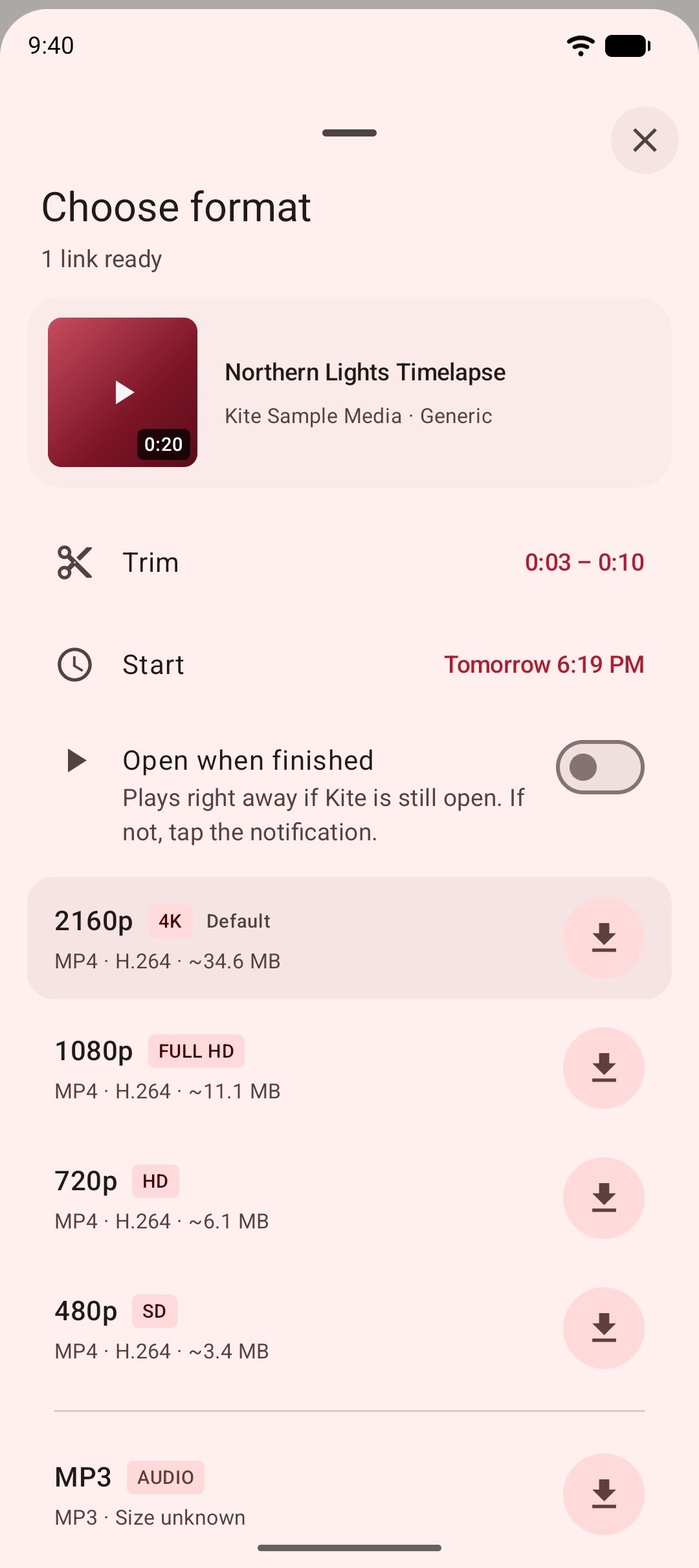
- Pick the audio option. Kite reads the page and lists what the source offers: the video resolutions, each with its container, codec and an estimated size, and an audio-only option that produces an MP3. Choose the MP3 entry. Kite pulls the audio out and embeds the title and artist it found on the source page, so the file arrives named properly instead of as a row of digits. If you only want part of a long recording, set a trim range before you start.
- Let it download in the background. Progress lives in the notification shade, with live speed and time remaining, and you can pause, resume or cancel from there. Downloads survive closing the app, up to three run at once, and an interrupted download resumes rather than starting over.
- Find it in the library. The finished MP3 appears in Kite’s library, next to the audio already on your phone, grouped by folder and searchable. The file itself lands in a Kite folder that your gallery, music and file apps can see, so it is a normal file you can move, share or copy off the phone.
Platform quirks mostly affect the video side, not the audio — our guide to saving TikTok videos without the watermark covers what changes when the source is a short-video app.
Step by step: from a video already on your phone
This path needs no link and no page. It is for the file already in your storage: the lecture you recorded, the voice note someone sent as a video, the screen capture with an explanation you want to keep listening to.
- Open the library. Kite lists the videos already on your phone alongside the ones it downloaded, so a recording sitting in your camera folder shows up without importing anything.
- Find the file. Use the folder grouping if you know roughly where it is, or search by name if you do not.
- Choose the option to convert it to MP3. The conversion runs inside Kite, on the phone. There is no upload step, no file-size ceiling and no second app to install. Kite has no server of its own, so the video does not leave the device to become audio.
- Wait for it to finish, then check the library. The new MP3 sits with everything else. The original video stays where it was — converting adds a file, it does not replace one.
Which path to pick
| Question | From a link | From a video you already have |
|---|---|---|
| What you start with | A link to a public page | A file in your phone’s storage |
| Where the audio comes from | The audio the source page offers | The audio inside the file |
| Title and artist | Read from the source page | Whatever the file already carried |
| Best for | Talks, lectures and clips you found | Your own recordings and voice notes |
To compare this against other apps that advertise MP3 output, our roundup of video to MP3 apps for Android says which of them convert a file you already have and which only pull audio out during a download.
What you get once it is saved
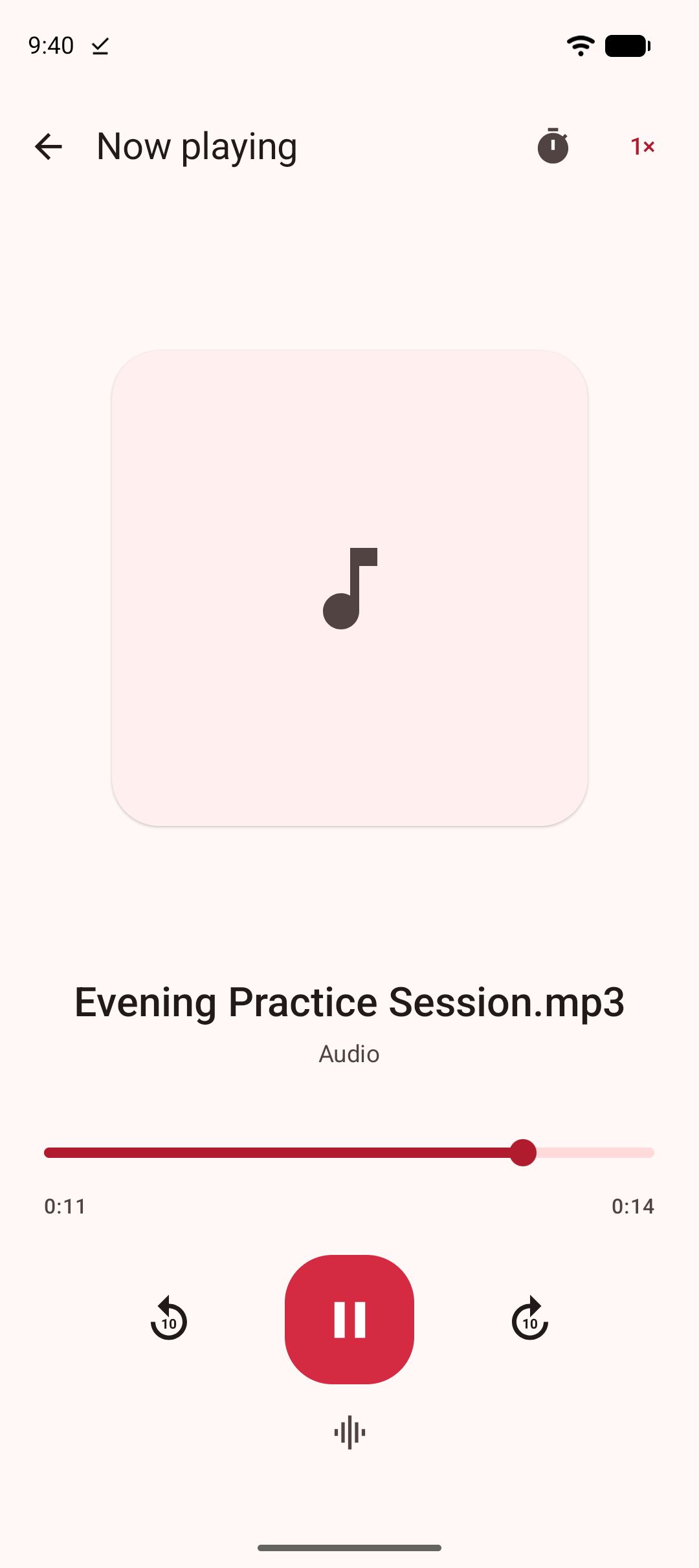
The point of the MP3 is what happens afterwards. A saved MP3 keeps playing with the screen off, and the controls sit on the lock screen, in the notification shade and on Bluetooth headphones or a car stereo. Ten-second skips forward and back make it easy to catch the sentence you missed. That is the difference between an audio file and a video file you are only listening to: the video stops when the screen does.
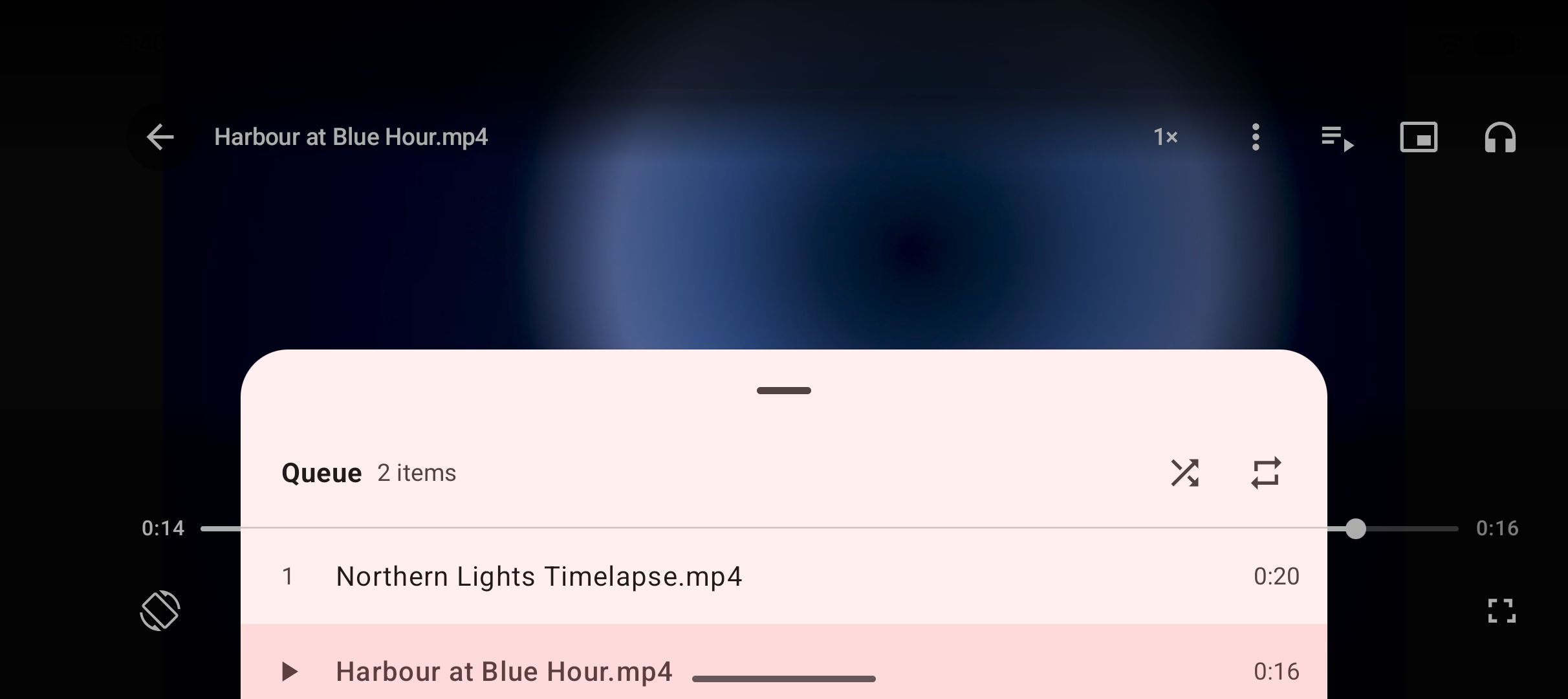
Video you actually want to watch is a separate story. What makes a good offline video player on Android covers that side, including picture-in-picture and gesture controls.
If it does not work
The page offers no audio-only entry
Some pages hand over one combined file and nothing else, so there is no separate audio option to choose. Save the video at whatever resolution suits you, then use the second path above and convert it inside the app. You end up with the same MP3; it just takes one extra step and a little more data.
The MP3 has no title or artist
The title and artist come from the source page. If the page carried none — plenty of clips and personal recordings do not — the MP3 arrives with its filename and little else, and Kite cannot invent what was never there. A file manager or a tag editor on the phone can fill the fields in afterwards. A file converted from your own storage carries whatever the original carried, which for a camera recording is usually nothing.
Nothing starts on mobile data
Check the Wi-Fi-only setting. When it is on, Kite waits for Wi-Fi rather than spending your mobile data, so a job that looks stuck is often just queued. Turn the setting off, or connect to Wi-Fi and it moves on its own.
The post is private, deleted or behind a login
Kite saves from public pages. If a post has been removed, set to private, or only reveals its media once you are signed in, the extraction has nothing to read and will tell you so rather than fail quietly. For a page you can legitimately see when signed in, opening it in Kite’s built-in browser is the route that can still work, because what the browser can play on the page it can usually offer to save.
The legal bit
Kite is a tool for personal use. Save only content you own or have permission to save, respect the terms of the sites you visit, and respect the rights of the people who made what you are watching.
Two limits are built in rather than left to your judgement. Kite does not bypass copy protection of any kind: material protected by DRM is declined rather than downloaded. And there are certain large video and music platforms that Google Play policy does not allow downloader apps to touch; Kite deliberately excludes them.