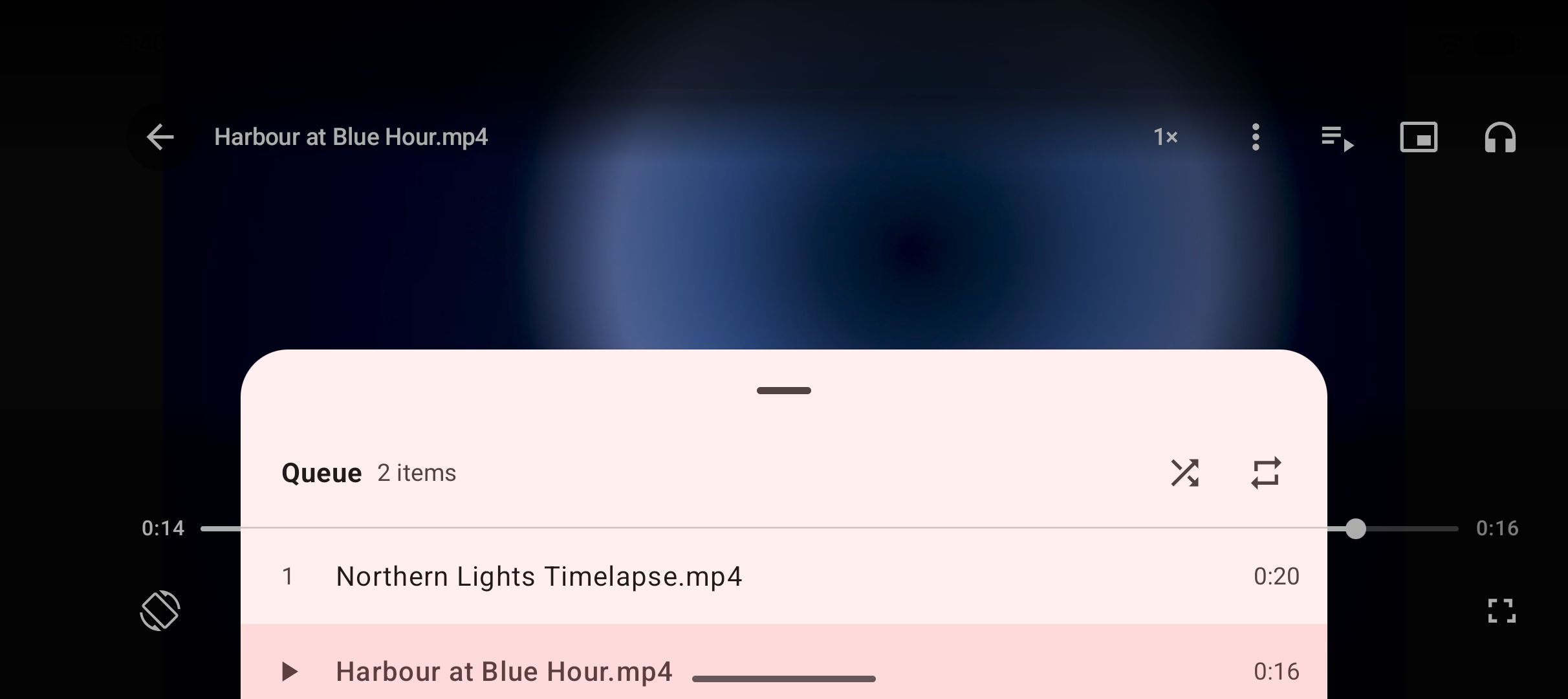
To lock the screen while a video plays on Android, you have two tools, and they solve different problems. A touch lock inside the video player makes the picture ignore taps and swipes, so a pocket, a lap or a small hand cannot pause, skip or close it. Android’s app pinning keeps the phone inside one app until someone enters the phone’s PIN. For a child, use both. Kite: Video Downloader has the first built into its player, as Lock screen, and it works alongside the second. This is not about the phone’s own lock screen, the one with the clock. Kite is our app, so read this as our description of what it does rather than a neutral review.
What “locking” can mean
Three different jobs share one word, and it helps to know which one you need.
- A touch lock stops stray touches on the video: the phone in a pocket on a walk, a tablet on a lap in the car, a toddler’s hand. The video keeps playing, and nothing you brush against does anything. It lives inside the player.
- App pinning stops anyone leaving the app. A pinned phone stays in one app until it is unpinned, and unpinning can require the phone’s PIN, pattern or password.
- Parental controls and kids profiles decide what can be watched and for how long. Neither a lock nor a pin does that job. Your phone maker’s help pages and Google’s own cover those tools.
Method 1: the player’s own lock
Kite’s video player keeps its touch lock in the More options menu, the three dots in the player’s top bar, under the name Lock screen. Tap it and five things happen at once:
- The controls disappear, and so do Android’s status and navigation bars. Home and Back are touch targets too, and they are the first thing a pocket or a hand finds, so a lock that left them showing would not be much of a lock.
- Every gesture on the picture stops working. Swipes for seeking, brightness and volume, double-taps, press-and-hold for double speed and pinch-to-zoom all go quiet together, because the lock switches off the one layer every gesture passes through.
- Back does not leave the player. A back swipe or a press of Back shows the way out instead of taking it.
- The video keeps playing, and the screen stays on while it does.
- Turning the phone keeps the lock on, so a phone that rotates in a pocket is still locked when it comes out.
To switch the lock off, tap anywhere on the video. One lock button appears at the side of the screen and stays for about five seconds; tap it once and the controls come straight back. The same button also shows for a moment right after you turn the lock on, so you can see where the way out will be.
The lock is built against accidents, and three limits follow from that:
- One tap on that button ends it. That is what an adult reaching for the phone wants, but a child who has watched you do it can learn it.
- The phone’s own buttons still work. The volume keys and the power button behave as usual, and turning the screen off with the power button pauses the video.
- Android keeps a way out for everyone. A deliberate swipe in from the edge of the screen brings the system bars back for a moment. That belongs to Android itself, and no app can remove it.
One more rule protects you from the lock itself: if the video stops with an error while the screen is locked, the error message, a way back and the system bars all return, so nobody is stranded on a screen that has stopped working.
Method 2: Android’s app pinning
Google describes app pinning on its Android Help page “Pin & unpin screens”: you can pin an app’s screen to keep it in view until you unpin it, and the page’s own example is pinning an app before handing your phone to a friend, who can then use only that app. The steps below follow that page.
Turn it on once. Open Settings, tap Security (or Security & location), then Advanced, then App pinning, and switch it on. With app pinning on, you have to enter your PIN, pattern or password before a pinned screen can be unpinned.
Pin an app. Open the app, swipe up to the middle of the screen and hold (or tap Overview on phones with buttons), tap the app’s icon at the top of its preview, then tap Pin.
Unpin it. With gesture navigation, swipe up and hold. With two-button navigation, touch and hold Back and Home; with three buttons, touch and hold Back and Overview. Enter your PIN, pattern or password if the phone asks.
Google notes that on Pixel phones some of these steps work only on Android 11 and newer. Other phone makers may place the switch elsewhere, so if you cannot find it, search your settings for “pin”.
Using both for a child
The two tools cover each other’s gaps. Pinning keeps the phone inside Kite whatever gets pressed, and the lock stops the video from being paused, skipped or closed by accident. Two habits make the combination work better:
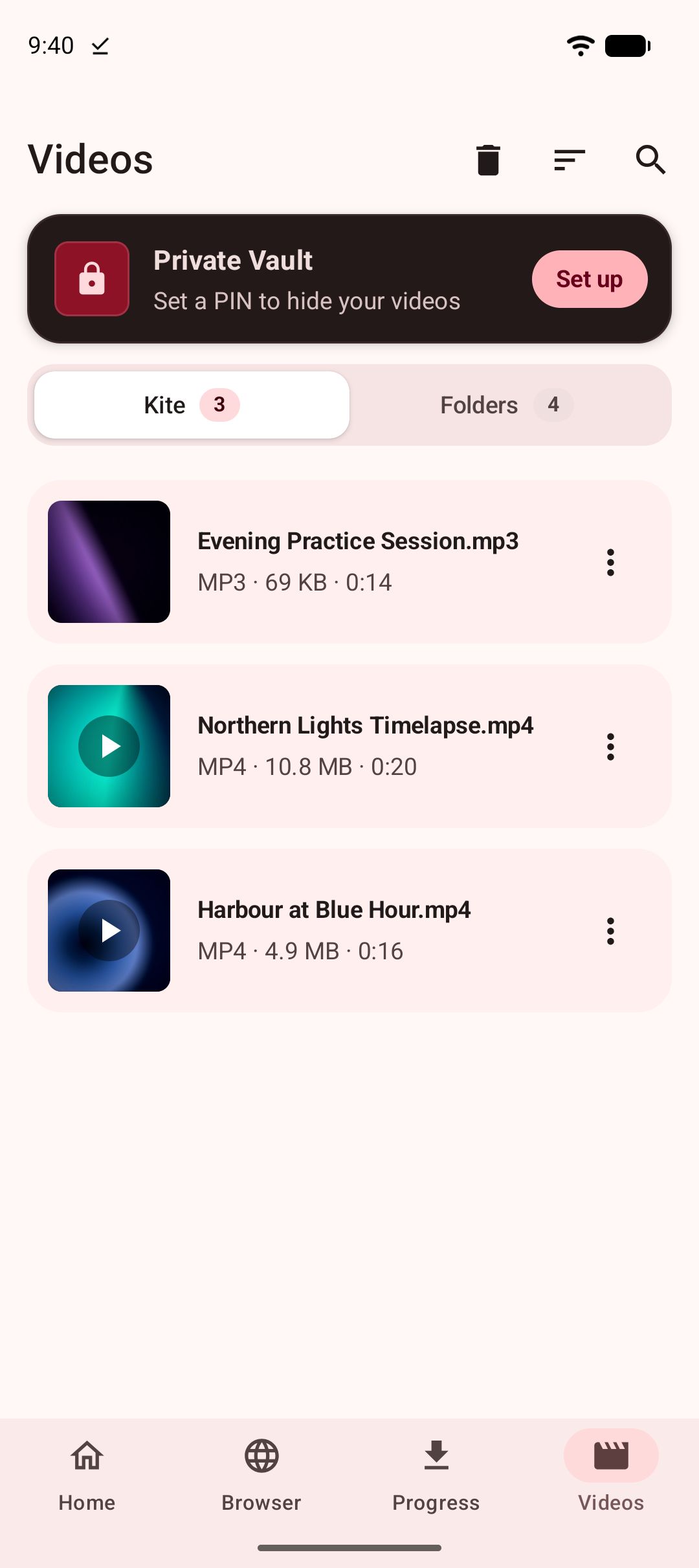
- Save the videos before you need them. A file stored on the phone plays with no connection at all, so the phone can go into flight mode for the journey and nothing buffers, streams or plays something you did not choose. Kite saves video from the web pages it recognises, and its Videos tab also lists the videos already on the phone, grouped by folder.
- Set the volume first, since the volume keys still work under the lock.
Step by step
- Get the videos onto the phone while you have Wi-Fi. Kite is on Google Play for Android 7.0 and newer; it is free, supported by ads (a banner and the occasional interstitial), and needs no account.
- Turn on app pinning in your phone’s settings, once.
- Open Kite and pin it from Overview.
- Open the video from the Videos tab, start it, and set the volume.
- Tap More options, then Lock screen. The controls and the system bars disappear, and the video plays on.
- Hand the phone over.
- To finish, tap the video, tap the lock button, then unpin with the gesture for your navigation style and enter your PIN.
If it does not work
A tap on the video brings up a button
That button is the way out, and showing it is the one thing a locked screen does when touched. Leave it alone and it disappears after a few seconds.
The screen turned off anyway
The screen stays awake only while a video is playing. If the video was paused, or reached its end, the phone’s normal screen timeout applies.
The video paused when the screen went dark
A video in Kite pauses when the screen turns off, by design, because a picture nobody can see is not being watched. If you only want the sound, our guide to playing a video with the screen off shows the one-tap Play as audio route.
App pinning is missing from Settings
Google’s page notes that some of the steps need Android 11 or newer on Pixel phones, and other makers name and place the setting differently. Searching your settings for “pin” usually finds it.
What a lock is, and what it is not
A touch lock and a pinned app keep a video playing in front of the person watching it. They do not choose what that person watches; parental controls do that. For the rest of the watching experience, see what makes a good offline video player on Android, and two player tools that pair well with a lock: zooming in on a video and looping part of a video.
On the downloading side, two limits apply to everything Kite saves. Kite does not bypass copy protection of any kind: material protected by DRM is declined rather than downloaded. And there are certain large video and music platforms that Google Play policy does not allow downloader apps to touch; Kite deliberately excludes them. Save only what you own or have permission to save, and respect each site’s terms and the rights of the people who made the videos.