To zoom in on a video on Android, put two fingers on the playing picture and spread them apart. Whether anything happens depends on the player. Kite: Video Downloader zooms the picture under your fingers, lets you move around it with two fingers, and settles neatly on the whole frame or on a screen-filling view when you let go near either. Android’s own magnification works in any app, but it enlarges the whole screen rather than the video alone. Kite is our app, so read this as our description of what it does rather than a neutral review.
This guide covers files on your phone: videos you saved, camera recordings, clips someone sent you. It explains why black bars appear in the first place, the three ways to get rid of them or look closer, and why the file you zoom into matters as much as the player.
Why videos have black bars
A video has a shape, called its aspect ratio: most landscape video is 16:9, and most phone screens are longer and narrower than that. When the two shapes differ, a player has a choice. It can show the whole frame and leave bars where the screen is not covered, which is what Fit means. It can enlarge the picture until the screen is covered and crop whatever spills over the edges, which is Fill. Or it can let you zoom further still, into one part of the frame, and move around inside it.
Fit is the honest default, because nothing is cut off. Fill is often nicer for a landscape video on a phone turned sideways, where the crop is a thin strip at the top and bottom. A free zoom is for detail: the hands of a guitarist, the text on a slide in a recorded lecture, a number on a shirt in a match.
Three ways to zoom on Android
In the video player
The best option when you are watching, because only the picture changes: the controls stay the size they were, and the zoom belongs to that video. Players differ a lot here. Some offer a fixed list of aspect-ratio modes, some a single fill button, and some a real pinch.
With Android’s magnification
Android’s accessibility settings include a screen magnifier that works everywhere. According to Google’s Android Accessibility Help page, you turn it on under Settings, then Accessibility, then Magnification, by switching on the Magnification shortcut. The shortcut can be the accessibility button, pressing and holding both volume keys, or a quick triple-tap on the screen. Once you are zoomed in, you pinch with two fingers to change the zoom and drag with two fingers to move around, and the page notes that some of these steps work only on Android 13 and up.
It is useful for small text in a player that has no zoom of its own. The drawback for video is that it enlarges everything on the screen, controls and captions included, so the player’s buttons move off the edges as you zoom.
By cropping in an editor
A video editor can crop the frame and save the result. That is permanent and makes a new file, which has to be re-encoded, so it takes a while and costs some quality. It makes sense when you want to send someone a cropped clip, not when you just want a closer look while watching.
Step by step in Kite
- Open the video in Kite’s player. Anything Kite downloaded works, and so does video already on the phone, listed on the Videos tab by folder.
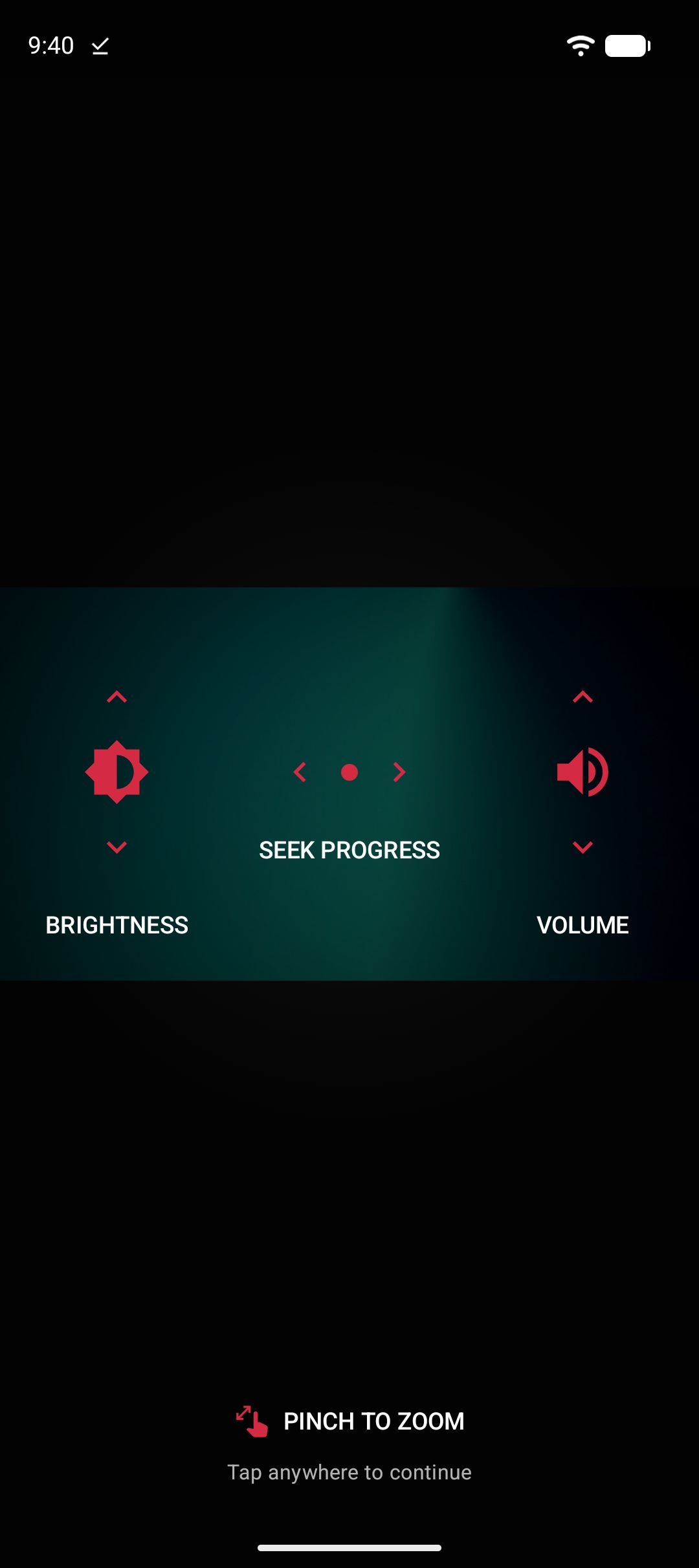
- Read the guide once. The first time you play a video, Kite overlays a short diagram of its gestures: swipe up or down on the left for brightness, on the right for volume, left or right to change position, and pinch to zoom. Tap anywhere to continue.
- Pinch to zoom. Put two fingers on the picture and spread them. The zoom grows around the point between your fingers, so whatever you aimed at stays under them. A small readout shows the zoom as a percentage, with the whole frame as 100%, and names the framing you are closest to: Fit to screen, Zoomed to fill, or simply Zoom in between.
- Move around. Drag with two fingers to pan. If you lift one finger, the other keeps panning, and a quick flick lets the picture glide on a little before it stops.
- Let go near a framing to land on it exactly. You feel a small tick as the zoom passes Fit or Fill, and a release within about 6% of either settles on exactly that size.
- Or use the button. In the row of controls along the bottom, the button to the right of play and pause switches between the two framings. From the whole frame it offers Fill screen; from Fill or any zoom it offers Fit to screen, and the picture glides between them.
- Turn the phone if the video is landscape. Auto-rotate works, and there is also a rotate button on the left of the same row. A filled picture stays filled after turning, whatever Fill now needs; any other zoom keeps its size within the new limits and keeps the same part of the picture in the middle.
Getting a sharp zoom
Zooming never adds detail. It enlarges the pixels the file already has, so a 480p video zoomed three times looks soft, and the same scene saved at 1080p or 4K holds up far better. If you know you will want to look closely, whether at a whiteboard in a talk or at footwork in a tutorial, save the largest version the source offers.
That choice happens before playback. When you save a video with Kite, the format sheet lists every resolution the source provides, each with its container, codec and an estimated size, so you can weigh sharpness against storage before anything downloads. Our complete guide to downloading videos on Android walks through that sheet in detail.
Zoom pairs naturally with two other player tools. To study one movement over and over, set up A-B repeat to loop part of a video and zoom in on the detail while it repeats. And for a wider look at what a good player should do with saved files, see what makes a good offline video player on Android.
If it does not work
The pinch seeks or changes the volume instead
The player reads a single finger as a swipe, so the pinch needs both fingers down together. A second finger that lands a fraction of a second after the first still takes over, but a press-and-hold that has already switched to double speed stays a speed hold. Lift both fingers and start again with two.
The picture springs back when you let go
You pulled past a limit: beyond the largest zoom, below the whole frame, or past the edge of the picture while panning. The player lets you pull a little further, then settles back inside the limits, so a released picture never rests half dragged off the screen.
Nothing happens when you pinch
A few things switch the gesture off. The one-time guide is still on screen, so tap to dismiss it. The screen is locked from More options, which makes the video ignore every touch, pinches included; our guide to locking the screen while you watch explains how that lock works. Or the video is playing in the picture-in-picture window, which always shows the whole frame.
Magnification and the player pull against each other
While Android’s magnification is zoomed in, a two-finger drag moves the magnified screen rather than the video. Use one or the other: the player’s own zoom for watching, magnification for reading small text elsewhere.
The legal bit
Kite is a tool for personal use. Zoom into, study and replay what you own or have permission to save, respect the terms of the sites you save from, and respect the rights of the people who made the videos. Kite does not bypass copy protection of any kind: material protected by DRM is declined rather than downloaded. And for scope, one honest note: there are certain large video and music platforms that Google Play policy does not allow downloader apps to touch; Kite deliberately excludes them.