Hiding a video on Android takes about a minute: move it into a folder the gallery does not index and it disappears from view. The catch is the word “hide”. A hidden video is out of sight, not out of reach. The file is unchanged, and a file manager, a USB cable or a search by filename finds it in seconds. This guide walks through four methods, from the quickest to the one that actually seals the file, and says plainly what each protects you from. One of them is the Private Vault in Kite: Video Downloader. Kite is our app, so read that section as our honest case rather than a neutral review.
Hidden and encrypted are different promises
Android keeps a media index: a catalogue of every video, photo and song on the phone that gallery and player apps read. “Hiding” a video usually means keeping it out of that index. The file stays exactly where it was, byte for byte, and anything that reads storage directly, such as a file manager with hidden files switched on or a computer over USB, sees it as before.
Encryption changes the file itself. An encrypted video is scrambled with a key, so what sits in storage is unreadable without that key. Hide a video and you beat an idle swipe through the gallery. Encrypt it and you beat anyone who goes looking. Our guide to private video vault apps covers the distinction in depth, along with five checks to hold any vault app against. The rest of this page is the practical part.
Method 1: a hidden folder
This is the built-in trick, and it needs no app at all.
- Open your phone’s file manager and go to the folder holding the video, or make a new one.
- Either name the folder so it begins with a dot, such as
.private, or create an empty file inside it called.nomedia. Android’s media index skips folders marked either way. - Move the videos into that folder.
- If they still appear, the gallery has not re-scanned yet. Reopening it, or restarting the phone, usually clears the old entries.
What it protects against: someone flicking through your gallery. What it does not: anyone who opens a file manager and turns on “show hidden files”, plugs the phone into a computer, or searches storage by filename. The video is unchanged and plays the moment it is found. Treat this as tidying rather than protection. One more caveat: a backup app that copies your storage may well copy the hidden folder too, so hidden on the phone does not mean absent from your backups.
Method 2: Google Photos Locked Folder
If Google Photos is on your phone, it has a Locked Folder. Google’s help page states that Locked Folder is available on devices running Android 6 and later, and that items moved there will not appear in the Photos grid, memories, search or albums, and will not be available to other apps on the device.
Set-up varies a little between versions of the app: open Google Photos, find Locked Folder in the library or collections area, set it up, then select the videos and choose the option to move them in.
Two facts from the same help page decide whether it fits you. Backup is optional: you can turn on backup for the Locked Folder to reach its items from other devices, and items you do not back up are stored only on that device. And the page warns that you lose Locked Folder items you have not backed up if you uninstall the Photos app, clear its data, or the device is damaged or lost. Google’s page describes what the folder hides and where items live; it does not describe how items are stored on the device, so we make no claim either way about encryption at rest. What it clearly does is take videos out of the gallery and away from other apps, with a cloud copy if you choose one.
Method 3: your phone maker’s secure space
Several phone makers build a secure folder or private space into the system settings. What it does differs by brand, and we have not audited them, so this is a method to evaluate rather than a recommendation. Search the maker’s own help pages for the feature and look for three things: whether it says the contents are encrypted, whether the contents are included in backups or account sync, and what happens if you forget the code. If the answers are “yes”, “you choose” and “gone”, it is a real vault. If the pages are vague, assume it hides rather than seals.
Method 4: the Private Vault in Kite: Video Downloader
Kite is a video downloader and player on Google Play for Android 7.0 and newer. It is free and supported by ads, a banner and the occasional interstitial, with no account and no sign-up. The Private Vault is built into it, and it is designed for the strongest of the four promises: files inside are encrypted on this device and hidden, not merely moved.
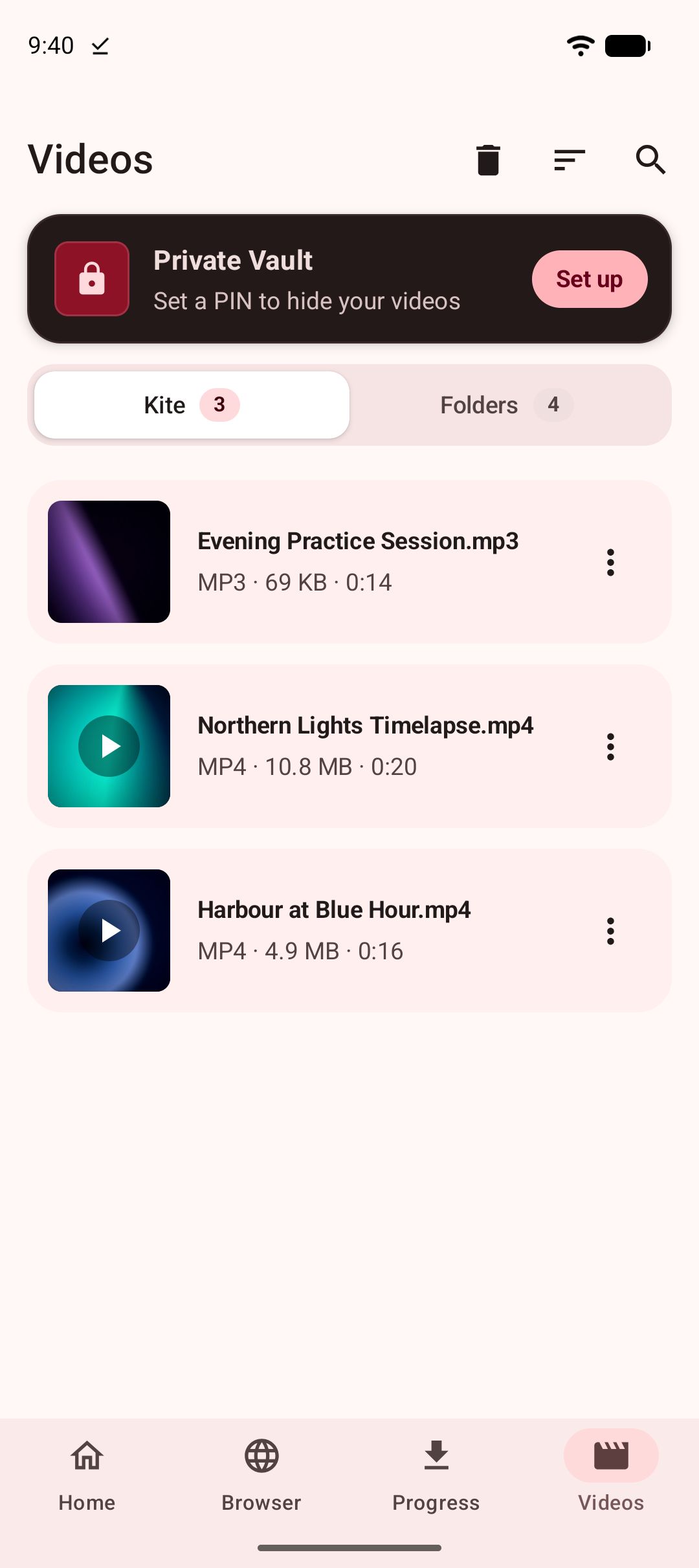
- Install Kite from Google Play and open the Videos tab. It lists every folder on your phone that holds video or music, with a count for each. Kite asks for access to your videos and music the first time you open the tab, and asks for nothing beyond them. It cannot see your photos, documents or other files.
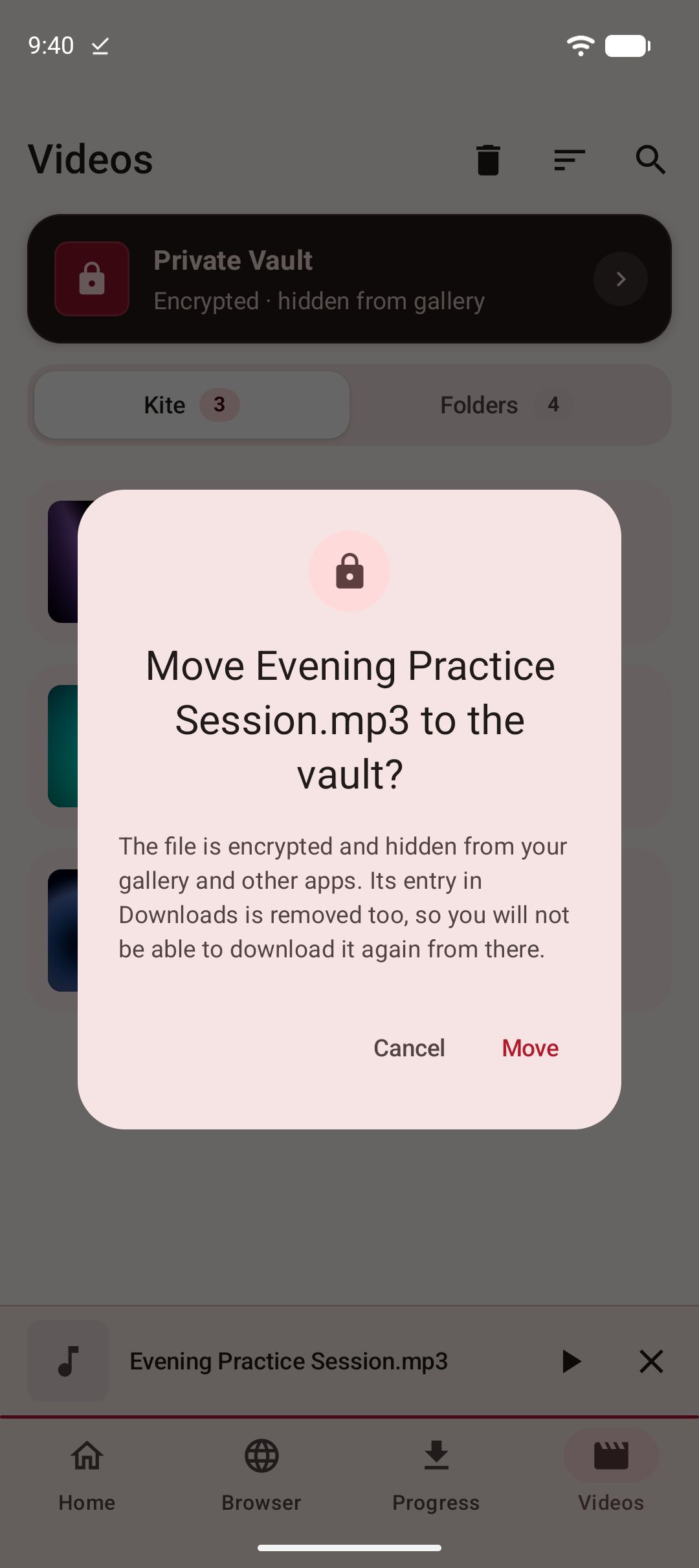
- Find the video and open its menu. Choose Move to vault. It works on videos Kite downloaded and on videos already on the phone: a camera recording, a clip someone sent you, a file copied over from a computer. You can also start from inside the vault, where the Add button opens the system file picker for a video or song.
- Create a PIN, the first time only. The vault takes a four-digit PIN, entered twice, and then a hint, which Kite shows only after three wrong tries. Setup does not finish without one, and the hint cannot contain the PIN itself.
- Let Kite seal the file. The video is encrypted on this device and the original is removed, so it stops appearing in the gallery, in file apps and on the Videos tab. If Android will not let Kite delete the original, which happens with files an earlier installation of the app saved, Kite tells you, so you can remove that copy yourself rather than believing it is gone.
- Watch it inside the vault. Enter your PIN and play the file in place. Playback decrypts as it goes; nothing is written back to storage unencrypted. Screenshots and screen recording are blocked while the vault is open, and the vault locks again when you leave the screen.
- Change the PIN whenever you like from inside the vault.
Now the honest limits, stated as plainly as the vault’s own set-up screen states them. There is no reset. If you forget the PIN, the files are gone; Kite cannot recover them and nobody else can either. The vault lives only on this phone: removing the app, clearing its data or moving to a new phone destroys it, and it is not part of any backup. That is the price of a vault that nobody but you can open, so keep a separate copy of anything you cannot afford to lose.
Kite’s other half, the downloader, is why the vault is where it is. A clip you save can go from the library into the vault in one step, with no file manager in between; our complete guide to downloading videos on Android covers that side. Once the vault exists, a download can skip the gallery altogether: switch on Save to Private Vault in the format sheet and the file goes from the download straight into the vault, with no moment in which another app could see it. Adding needs no PIN, so this works while the vault is locked. Our guide to downloading videos privately puts that together with Kite’s private browser tabs. And because the vault sits inside a player, watching a private video does not mean handing it to another app. See what makes a good offline video player on Android for the rest of that player.
Which method should you use
| Method | Out of the gallery | Found by a file manager or over USB | Where it lives | What you need |
|---|---|---|---|---|
| Hidden folder | Yes, after a re-scan | Yes, the file is unchanged | On the phone, in an ordinary folder | A file manager |
| Google Photos Locked Folder | Yes, and hidden from other apps | Not available to other apps, per Google’s help page | On the phone; cloud backup optional | Google Photos, Android 6 or later |
| Phone maker’s secure space | Usually | Depends on the maker | Depends on the maker | Whatever your phone shipped with |
| Kite’s Private Vault | Yes: gallery, file apps and Videos tab | No, the file is encrypted | On this phone only; never backed up | Kite on Android 7.0 or newer |
Use the first method for tidying, such as keeping screen recordings and work clips out of your holiday gallery. Use the Locked Folder if you live in Google Photos and want a cloud copy you control. Use the maker’s space if its help pages answer the three questions well. Use Kite’s vault when the video is genuinely nobody’s business and you would rather it were unreadable than merely out of sight.
The question to ask before you trust any of them
“What happens if I forget the code?” There are two honest answers. “Your files are gone” means the vault is sealed to you alone. “We can restore your access” means someone else holds a key too. The worst answer is no answer at all. Whichever method you choose, find that answer before you put anything real inside, and keep a second copy of anything irreplaceable somewhere you control.