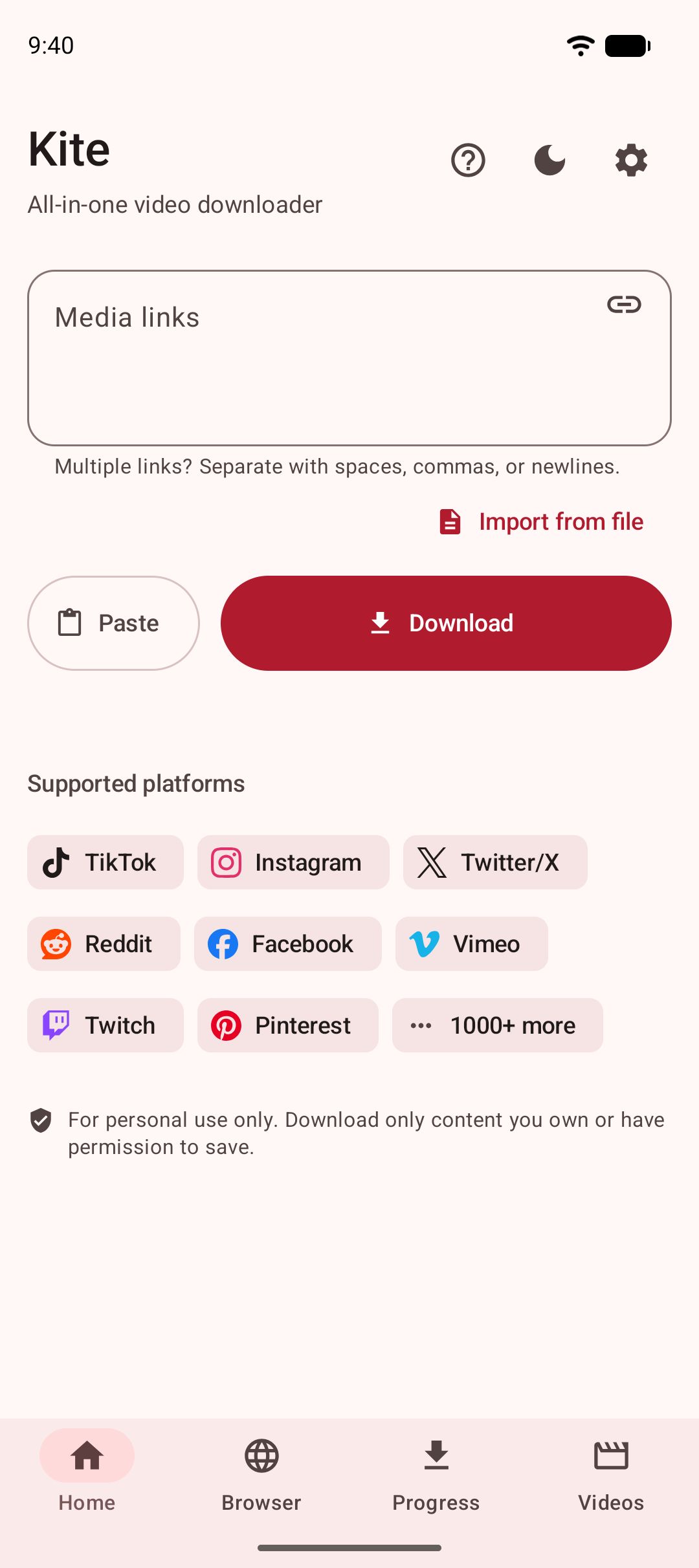
To download several videos at once on Android, hand a downloader all the links in one go and let it queue them. In Kite: Video Downloader that means pasting every link into the box on the Home tab, importing a text file of links, or opening a playlist link and ticking the items you want. Kite reads each link, lets you choose a quality per video or take them all at your default, and by default runs three downloads at a time while the rest wait their turn. Kite is our app, so read this as our description of how it works rather than a neutral review.
What you need
- Kite: Video Downloader from Google Play. It runs on Android 7.0 and newer, needs no account or sign-up, and is free, supported by ads: a banner and the occasional interstitial. If you are still comparing apps, our roundup of video downloader apps for Android lines up the field.
- The links. Public pages from TikTok, Instagram, X (formerly Twitter), Reddit, Facebook, Vimeo, Twitch and Pinterest work, along with the thousand or so other sites Kite’s engine, yt-dlp, recognises.
- Room for the batch. The format sheet shows an estimated size for every resolution.
Four ways to hand Kite a batch
Paste several links at once
The box on the Home tab takes more than one link, and its own hint says how: “Multiple links? Separate with spaces, commas, or newlines.” Copy a list out of a note or a chat, tap Paste, and Kite starts reading straight away. The button counts through the list (“Extracting 2 of 5”), and a link that appears twice is only read once.
Import a text file of links
If the links already live in a file, tap Import from file under the box and choose it in Android’s own file picker. No storage permission is involved, because you hand Kite that one file and nothing else. A plain text file works with one link per line, or with links separated by spaces or commas. Lines that start with #, ; or ] count as comments and are skipped, the same convention yt-dlp’s batch files follow, so a link you commented out stays out. Links wrapped in quotes or brackets, as they often are when copied from a spreadsheet or a note, are unwrapped.
One import carries up to 50 links. When a file holds more, Kite takes the first 50 and says so, for example “Imported the first 50 of 213 links”, rather than dropping the rest in silence. The links appear in the box, so you can see exactly what came in, and reading begins.
Open a playlist link
Some links lead to a playlist rather than one video. Kite lists what it contains, up to the first 100 items, and every item starts ticked. Untick what you do not want, or tap the checkbox at the top to clear the lot and then pick a few. One quality covers the whole playlist: Best, 1080p, 720p, 480p or MP3. Each item gets that quality where it exists and the next one down where it does not.
Keep adding while it runs
There is no need to collect everything first. A link shared to Kite from another app, a video found in Kite’s built-in browser and a fresh paste on the Home tab all join the same queue. Our guide to saving a video from the share menu covers the route that keeps you in the app you are in; sharing a note that holds several links works as a batch too.
Step by step
- Gather the links. Copy them into one note, or save them as a .txt file.
- Hand them to Kite. On the Home tab, tap Paste, or tap Import from file and choose the file. The box fills and Kite reads the links one after another.
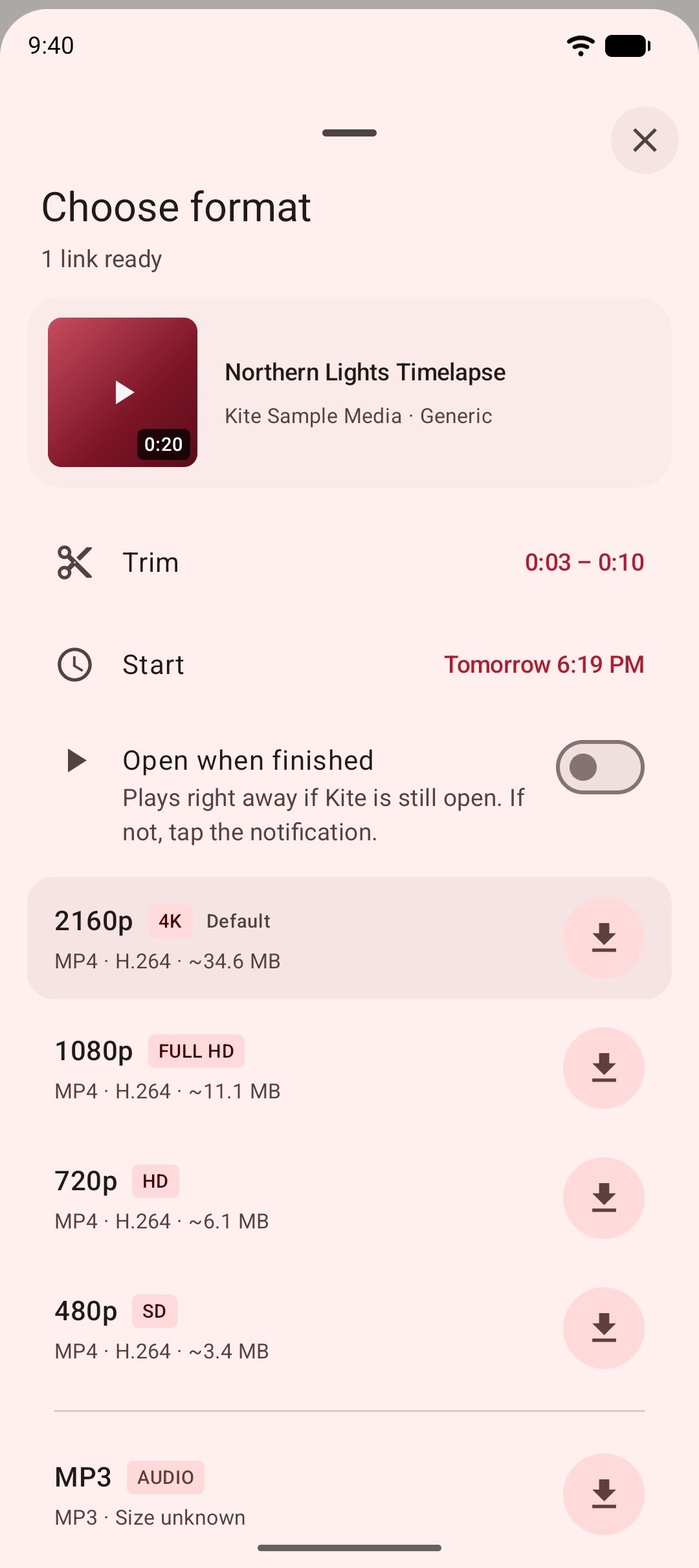
- Check the format sheet. The header says how many links are ready, such as “4 of 5 ready”. Each link has its own card listing every resolution the source offers, with container, codec and estimated size, plus an MP3 option. A link that could not be read explains why on its own card, and the others carry on.
- Choose per video, or all at once. Tap a resolution on each card to pick by hand. Or tap Download all at the top: every link then takes your default quality from Settings, matched exactly or with the nearest height below it, and a link with nothing to match takes the best it offers. When a playlist is part of the batch, it uses its own Download button instead.
- Close the sheet. Kite switches to the Progress tab, where the batch runs and keeps going if you leave the app.
- Find the files. Finished videos land in a Kite folder inside the phone’s Download folder, where gallery and file apps can see them, and on Kite’s Videos tab. With Save into folders set to By playlist, a playlist gets a folder named after it.
If you switched on Quick download in Settings, step 4 disappears: the sheet is skipped and every link starts at your default quality.
Managing a running batch
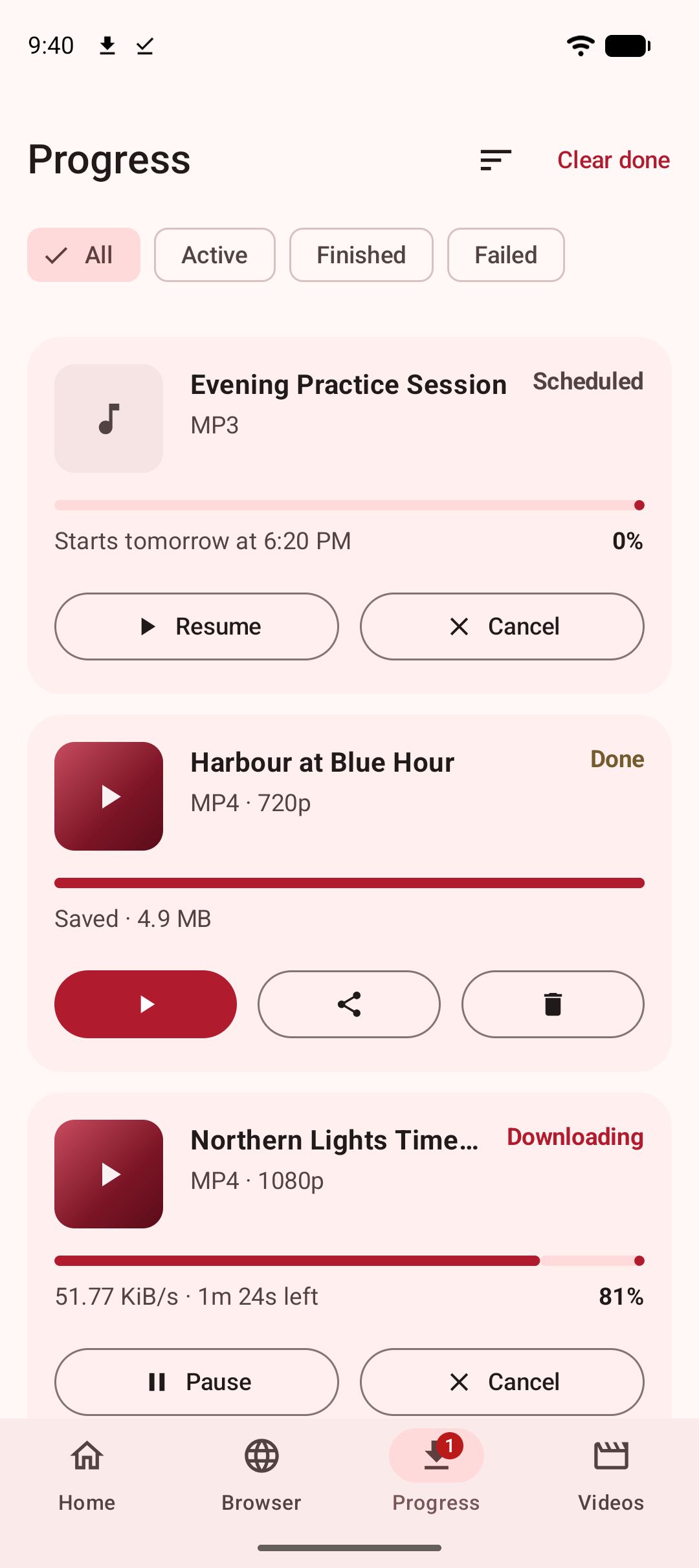
On the Progress tab, three downloads run together by default and the rest show Queued. Settings, More download options, Downloads at once changes that to any number from one to five. Each row shows live speed and time remaining, with Pause, Resume, Cancel and Retry, and a paused download resumes where it stopped instead of starting over.
For several rows at once, long-press one to start selecting, tap the others or use Select all, then act once. Only the actions that fit the selection appear: Share for finished files, Retry for failed ones, Cancel for anything still in flight, and Remove for any row. Remove asks first, and files that already finished stay on your phone. A playlist appears as a single card that reads “3 of 10 done” and carries Pause all, Resume all, Cancel all, Retry failed and Remove all; expand it to see each item.
Progress also shows in the notification shade. On Android 16 and newer, on phones that support Live Updates, a download in flight appears as a chip beside the clock and a card on the lock screen until it finishes.
If it does not work
One link in the batch fails
Each link is read on its own, so a failure costs only that one. The card names the reason: a private or deleted post, a page that needs a login, a region block. Open the link in a browser while signed out; if the video will not play there, Kite cannot reach it either. Links to the platforms Kite deliberately excludes are marked as such when you paste them.
The import stopped at 50
That is the limit for one file. Import the rest as a second file. The cap exists because every link is read in turn before the sheet opens, and a list of fifty already takes a couple of minutes to get through.
Downloads sit at Queued
Usually nothing is wrong: only as many run together as Downloads at once allows. Check for rows marked Waiting for Wi-Fi, which means Wi-Fi only is on and you are on mobile data, and for Scheduled rows with a start time still to come.
A playlist is missing items
Kite offers at most the first 100 items, and the sheet says so when the site listed more. Entries with no usable link, or ones pointing at an excluded platform, are left out of the list too.
The legal bit
Save only videos you own or have permission to save, and respect each site’s terms and the rights of the people who made the videos. The rules are the same for twenty videos as for one. Kite does not bypass copy protection of any kind: material protected by DRM is declined rather than downloaded. And some apps advertise coverage of certain large video and music platforms that Google Play policy does not allow downloader apps to touch; Kite deliberately excludes them.
Coming from batch downloading on a computer? Our 4K Video Downloader alternatives page covers what carries over. The TikTok download guide walks through a single save, and our complete guide to downloading videos on Android starts from the beginning.